
Lotus365 Two-Factor Authentication Setup: Complete Security Guide (2026)
Online account safety is no longer optional, especially when your account includes personal details, login credentials, and financial activity. In 2026, password leaks, reused credentials, and phishing attacks are more common than most users realise, and many users only discover it after an account access issue. That’s why setting up two-factor authentication (2FA) is one of the smartest steps you can take to protect your Lotus365 account.
This guide is written to help you configure 2FA properly, without confusion or technical jargon. Whether you are a beginner or a regular user, you will learn what 2FA is, why it matters, and the safest way to set it up for Lotus365, including backup methods and troubleshooting.
You’ll also find practical examples so you understand when 2FA saves your account in real situations, not just in theory.
Table of Contents
What is Two-Factor Authentication (2FA)?
Two-factor authentication (2FA) is a security method that adds one extra verification step after your password. Normally, logging in only requires:
- Username
- Password
With 2FA enabled, you’ll need:
- Username + password
- Plus a second verification factor (like OTP code, app approval, etc.)
This second step matters because passwords can be:
- reused across websites
- guessed using leaked data
- stolen through phishing pages
- compromised through malware or keyloggers
2FA blocks a major risk: even if someone gets your password, they still cannot access your account without the second factor.
In short: 2FA turns your login from “one lock” to “two locks.”
Why Lotus365 Users Should Enable 2FA in 2026
A lot of people assume hacks happen only to “important” people. The truth is, modern cyberattacks are automated, attackers target thousands of accounts at once using leaked password lists. If you use similar passwords across platforms, your Lotus365 credentials can become a target.
Here are the biggest reasons 2FA is essential for Lotus365:
1) Protects against password leaks
If your password is leaked from another site and you reuse it, attackers can test it on Lotus365 instantly. With 2FA on, they still cannot enter.
2) Stops phishing-based logins
Even if someone tricks you into entering your password on a fake page, 2FA prevents full account access (especially with authenticator apps).
3) Prevents unauthorised withdrawals
Account compromise risk isn’t only about login access, it may affect account activity, settings changes, and withdrawal attempts.
A strong password is good. A strong password plus 2FA is far better.
Types of 2FA: OTP vs Authenticator App vs Device Prompts
Before setting up, it helps to understand which 2FA method offers the strongest protection.
SMS OTP (Mobile OTP)
You receive a code by SMS.
Pros
- easy for beginners
- No extra app required
Cons
- SIM swap risks
- SMS delays in poor network areas
Authenticator App (Recommended)
Apps like Google Authenticator or Microsoft Authenticator generate codes offline.
Pros
- strongest practical 2FA option
- no SMS delay
- works even without a network
Cons
- You must back up recovery codes properly
Device prompt (approval notification)
Some systems send a prompt “Approve login?” to a trusted device.
This is the smoothest method, but not always available.
Best choice for most users: Authenticator app-based 2FA.
Lotus365 Two-Factor Authentication Setup (Step-by-Step)
Now let’s set up 2FA the correct way, so you don’t face OTP confusion or account lockouts later.
Step 1: Open Lotus365 from the official source
Always start by accessing Lotus365 using the official website.
Use:Lotus365 Official Platform
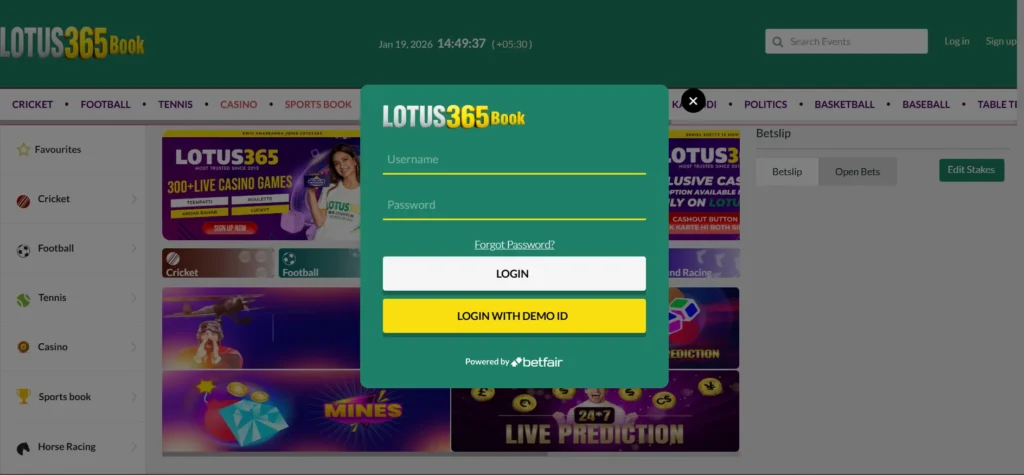
This reduces phishing risk. Fake mirror websites are one of the most common causes of account compromise.
Step 2: Sign in and go to Security Settings
After logging in, check:
- Account Settings
- Security
- Two-Factor Authentication / 2FA
Most platforms place it under profile/security settings.
Step 3: Choose your verification method
Pick one:
- SMS OTP (basic)
- Authenticator app (recommended)
Expert tip: If you frequently travel or face SMS delays, choose an authenticator app.
Step 4: Scan QR code (authenticator setup)
If selecting an authenticator:
- Install Google Authenticator or Microsoft Authenticator
- Tap “Add account.”
- Scan the QR code shown in Lotus365
- App will start generating 6-digit OTP codes every 30 seconds
Step 5: Verify OTP and activate
Enter the OTP shown in your app/SMS into Lotus365.
Once verified, 2FA is enabled.
From now on, every new login on your Lotus365 account requires:
- Password
- OTP verification
Important: Backup Codes & Recovery Setup
This section is critical. Many users enable 2FA and later get locked out due to:
- lost phone
- phone reset
- app deleted
- number change
When enabling 2FA, Lotus365 may provide backup codes. These are one-time recovery codes.
What you should do immediately:
- Copy the backup codes
- store them in a safe place
- Don’t save them only in phone notes
Recommended options
- password manager
- printed paper stored safely
- secure encrypted storage
Example scenario:
If you change your phone and lose authenticator access, backup codes can restore login instantly. Without backups, recovery becomes time-consuming.
Common 2FA Problems (And How to Fix Them)
Problem 1: OTP not coming
This mostly happens with SMS OTP.
Fix
- check network
- Wait 60 seconds
- Use resend OTP
- restart phone
- verify number is correct
Also consider switching to an authenticator app for long-term stability.
Problem 2: Authenticator OTP is always “invalid.”
This usually happens when your phone time is not synced.
Fix
- enable “Set time automatically.”
- restart phone
- In Google Authenticator: ensure time sync is correct
Problem 3: New phone, lost OTP access
If you didn’t back up codes, you may need account recovery support.
To reduce issues, keep:
- recovery codes
- linked mobile number
- updated email (if available)
Lotus365 Login
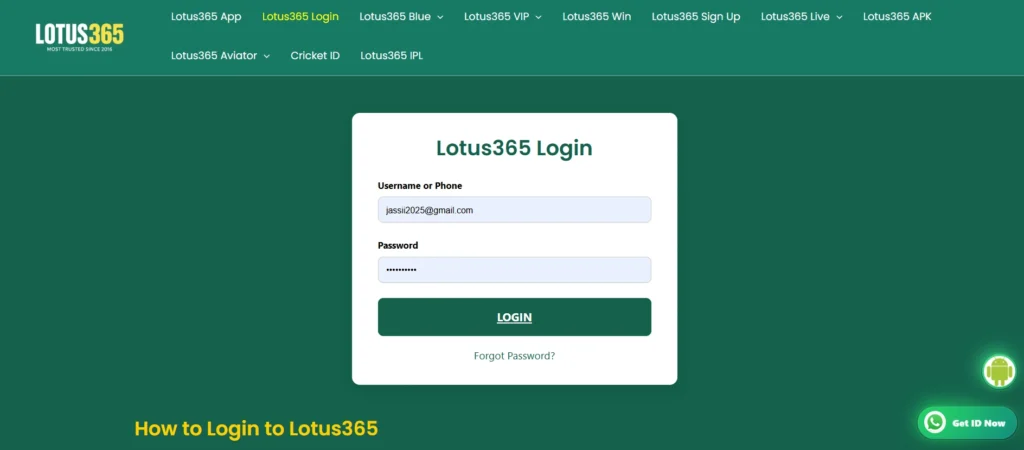
While setting up 2FA, it’s also important to follow a safe Lotus365 Login routine. Always verify you are on the correct website URL, avoid saving passwords on shared devices, and never share OTP with anyone, even if they claim to be support. A secure Lotus365 Login combined with two-factor authentication creates strong account protection and significantly lowers the risk of unauthorised access.
For login help, use:
Lotus365 Login Guide
Best Practices to Keep Your Lotus365 Account Safe
2FA is powerful, but it works best with good security habits.
1) Use a unique password
Avoid:
- “123456”
- birthdate combos
- reused passwords
Use a password with:
- 12+ characters
- mix of letters, numbers, symbols
2) Never share OTP codes
OTP is equivalent to a login key. Any person asking for OTP is attempting fraud.
3) Avoid public Wi-Fi for login
Public Wi-Fi networks can be monitored.
4) Check official pages only
For brand verification and login pages
5) Use the official app if available
For mobile security usage: Lotus365 App Guide
For further guidance, refer to :
Conclusion
In 2026, protecting your Lotus365 account is not only about choosing a strong password, but it’s also about building layers of security that keep your access safe even when passwords leak or phishing attempts happen. That is exactly why enabling two-factor authentication is a smart decision for every user. Once you set up 2FA, your Lotus365 Login becomes far more secure because every login requires a second confirmation step, either through OTP or an authenticator app. The most important part is to save backup codes properly so you never lose access if your phone changes or resets. When used correctly, two-factor authentication reduces risk, prevents unauthorised entry, and helps you enjoy the platform with confidence.
Frequently Asked Questions
Q1. What is two-factor authentication in Lotus365?
Two-factor authentication in Lotus 365 adds an extra OTP verification step after password login, improving account safety.
Q2. Is Lotus 365 Login safe without 2FA?
A password-only Lotus 365 Login is less secure. 2FA is recommended to prevent unauthorised access even if your password is leaked.
Q3. Which is better for Lotus 365 2FA: SMS OTP or authenticator app?
Authenticator app-based 2FA is usually safer because it avoids SMS delays and SIM swap risks.
Q4. What if I lose my phone after enabling 2FA?
Use backup/recovery codes or follow account recovery steps. That’s why saving backup codes is essential during setup.
Q5. Why is my OTP showing invalid during 2FA setup?
Usually because phone time is not synced. Enable automatic time settings and try again.